Presentations stress people out for a reason. It’s not just about making slides — it’s figuring out what to say, how to say it, and how to make it actually make sense to someone else.
Most students either overload slides with too much text or keep things so minimal that nothing is clear. And even if the slides look decent, explaining them confidently is a completely different skill.
AI tools for presentations actually help most with the part people struggle with:
turning messy ideas into clear, structured communication.
The Real Problem With Presentations
Most people think presentations are about slides — they’re not.
They’re about communication.
And there are 3 separate layers students mix up:
- your understanding of the idea
- how that idea is structured
- how it’s visually shown
When those don’t align, you get:
- slides that look okay but don’t explain anything
- presentations that sound confusing even if the content is correct
- or slides that are just paragraphs copied from notes
AI helps because it forces structure first:
- it breaks ideas into logical chunks
- simplifies explanations
- and gives you a flow to follow when speaking
That’s the real value — not “auto slides,” but clear thinking → clear slides → clear delivery.
Best AI Tools for Presentations
1. Gamma
What it is:
Gamma is built around the idea that presentations should start from structured ideas, not blank slides. Instead of dragging boxes around, you give it a concept and it builds a logical presentation flow.
Why it’s useful for presentations:
Most students struggle with what goes on each slide. Gamma solves that by breaking your topic into sections automatically, which makes your presentation feel organized from the start.
Real use case:
You have a topic like “How recommendation systems work.” Instead of guessing slide titles, Gamma creates sections like:
- problem overview
- how recommendations work
- real-world examples
- limitations
That alone saves a ton of time and confusion.
Where it shines:
- turning vague ideas into structured slides
- giving you a starting point instantly
- keeping slides concise instead of overloaded
Limitations:
- outputs can feel generic if you don’t refine
- not ideal for very detailed technical diagrams
How to use this in a presentation workflow:
- Step 1: Input your topic and context (class, audience level, etc.)
- Step 2: Review the generated structure and fix weak sections
- Step 3: Convert sections into slides and trim unnecessary content
- Step 4: Rewrite slides in your own words so you can explain them naturally
👉 The key here: don’t accept the output — edit it so it matches how YOU would explain it.
2. Tome
What it is:
Tome focuses on storytelling instead of rigid slide structure. It’s designed to make your presentation feel like a narrative instead of disconnected bullet points.
Why it’s useful for presentations:
A lot of presentations fail because they feel random. Tome helps create a natural flow so your audience actually follows along.
Real use case:
If you’re presenting a project, instead of:
- intro → random slides → conclusion
You get:
- problem → why it matters → your approach → results → takeaway
That structure alone makes you sound way more confident.
Where it shines:
- building logical flow between slides
- making presentations feel smoother
- great for pitches and project explanations
Limitations:
- not ideal for heavy technical detail
- can over-focus on storytelling vs precision
How to use this in a presentation workflow:
- Step 1: Describe your presentation as a story (what happened, why it matters)
- Step 2: Generate a narrative structure
- Step 3: Convert each part into slides
- Step 4: Practice explaining transitions between slides (this is huge)
👉 This is what helps you avoid sounding robotic — your slides actually connect.
3. Canva AI
What it is:
Canva is mainly a design tool, but its AI features help turn basic slides into visually clean, easy-to-follow presentations.
Why it’s useful for presentations:
Even if your content is good, bad design makes it harder to understand. Canva helps make your ideas visually clearer without needing design skills.
Real use case:
You already have rough slides, but they look messy. Canva lets you:
- apply consistent layouts
- add icons/visuals
- space content properly
Which makes your explanation easier to follow.
Where it shines:
- improving clarity through design
- making slides look professional fast
- simplifying visuals
Limitations:
- doesn’t help much with structuring ideas
- easy to over-design and distract from content
How to use this in a presentation workflow:
- Step 1: Bring in structured content (from Gamma or your notes)
- Step 2: Apply a consistent template
- Step 3: Replace text-heavy slides with visuals
- Step 4: Reduce clutter so slides support your speech, not replace it
👉 Good design doesn’t mean more elements — it means less but clearer.
This is what most presentations actually come down to:
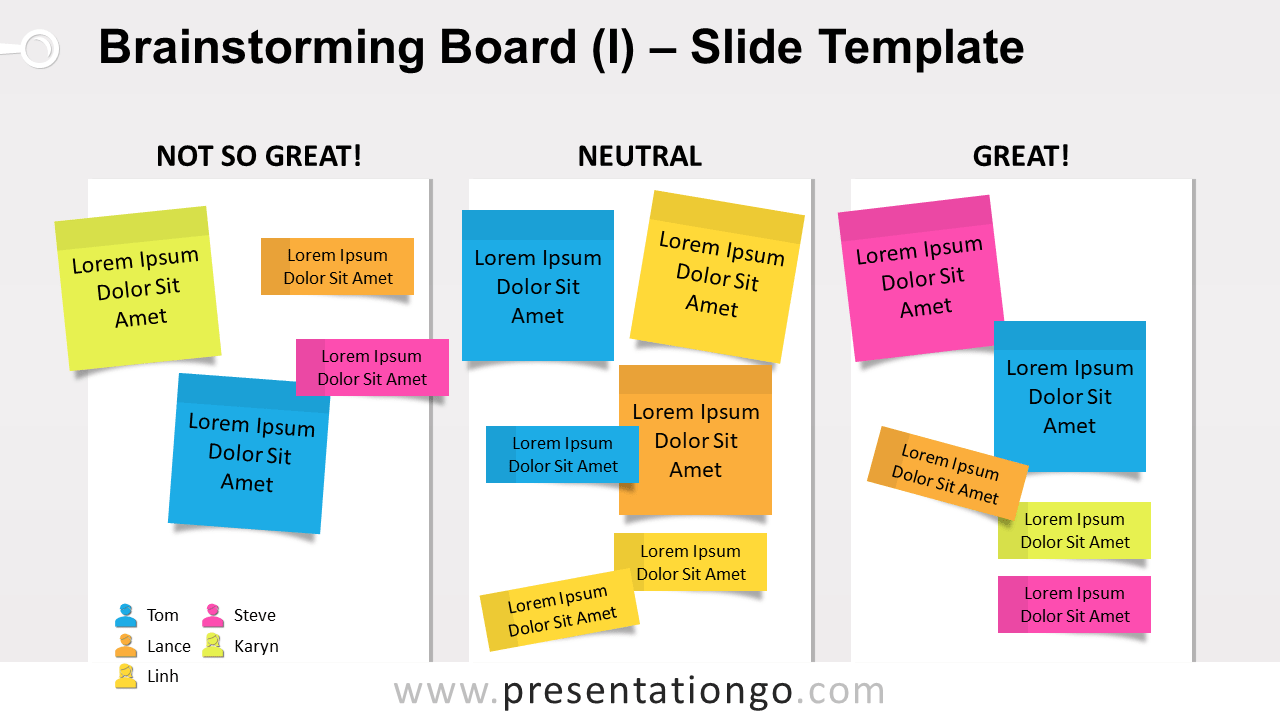
Turning a rough idea into structured slides and clear delivery is the real challenge — and where AI tools make the biggest difference.
4. Beautiful.ai
What it is:
A tool that automatically formats your slides as you build them so everything stays clean and aligned.
Why it’s useful for presentations:
Most students waste time adjusting spacing and layouts instead of improving content. This removes that problem completely.
Real use case:
Group project where everyone adds slides — Beautiful.ai keeps everything consistent automatically.
Where it shines:
- clean layouts without effort
- consistent design across slides
- fast slide creation
Limitations:
- less control over custom design
- can feel restrictive
How to use this in a presentation workflow:
- Step 1: Input structured bullet points
- Step 2: Let the tool handle layout automatically
- Step 3: Focus on simplifying wording
- Step 4: Spend saved time practicing delivery
👉 This is more about saving time so you can focus on what actually matters: explaining.
5. ChatGPT
What it is:
A general AI tool, but one of the most powerful for structuring and refining presentations.
Why it’s useful for presentations:
It helps you actually understand and explain your topic — not just generate slides.
Real use case:
Turning complex concepts (like a technical system or research result) into simple explanations you can present confidently.
Where it shines:
- simplifying difficult ideas
- generating speaker notes
- improving clarity
Limitations:
- can oversimplify if prompts are weak
- requires you to validate content
How to use this in a presentation workflow:
- Step 1: Ask it to explain your topic simply
- Step 2: Turn explanation into slide structure
- Step 3: Generate speaker notes for each slide
- Step 4: Practice explaining without reading
👉 This is the tool that improves your delivery, not just your slides.
6. Notion AI
What it is:
A workspace tool with AI features that helps organize ideas before they become slides.
Why it’s useful for presentations:
Most presentation problems start before slides — in messy notes. Notion helps organize everything cleanly.
Real use case:
Planning a group presentation with clear sections, responsibilities, and flow before building slides.
Where it shines:
- organizing ideas
- outlining presentations
- managing group projects
Limitations:
- not a slide builder
- requires extra step to export to slides
How to use this in a presentation workflow:
- Step 1: Brainstorm ideas in a structured doc
- Step 2: Use AI to organize into sections
- Step 3: Turn sections into slide titles
- Step 4: Transfer into presentation tool
👉 This is where clarity starts — before slides even exist.
The Actual Workflow (MOST IMPORTANT)
Here’s how this all fits together:
- Brainstorm your idea → use Notion AI
- Structure key points → use ChatGPT
- Generate slides → use Gamma or Tome
- Design visuals → use Canva or Beautiful.ai
- Add speaker notes → use ChatGPT
- Practice delivery → refine everything
If your presentation involves technical explanations or results, structuring how you explain things becomes even more important (see Best AI Tools for Lab Reports (2026)).
Common Mistakes Students Make With AI
- copying AI slides without understanding them
- putting too much text because “AI wrote it”
- relying on visuals instead of explanation
- reading directly from slides
- focusing on design instead of clarity
AI doesn’t fix bad thinking — it just speeds it up.
Tips for Using AI Responsibly in Presentations
Use AI to:
- structure ideas
- simplify concepts
- improve flow
But always:
- rewrite in your own words
- understand every slide
- practice speaking without reading

If you’re already using AI for structured writing tasks, the same idea applies here — clarity matters more than generation (see Best AI Tools for Essay Writing (2026)).
Study Setup That Actually Works With AI
- Student planner → helps map out presentation timeline so you don’t rush last minute
- Noise-cancelling headphones → crucial for focused slide building and practice sessions
- Sticky note study planner → helps you map out slide structure, key talking points, and presentation flow visually before building your deck for enhanced organization
These aren’t just extras — they directly impact how well you prepare.
FAQ
How do I stop my slides from being too text-heavy?
Start by writing everything you want to say, then force yourself to cut each slide down to 1 main idea. A good rule is: if you can’t explain the slide without reading it, it has too much text. Use AI to summarize, but then simplify even further manually.
What’s the best way to use AI without sounding robotic during a presentation?
Never present AI-generated text directly. Use it to understand the topic, then rewrite everything in your own words. The goal is to sound like you’re explaining something you understand, not reciting something you generated.
How do I turn a complicated topic into something easy to present?
Ask AI to explain the concept at different levels (beginner, intermediate, advanced), then pick the simplest version that still keeps accuracy. Build your slides around that version, and only add complexity if needed.
How do I actually practice effectively instead of just reading slides?
Practice explaining your slides without looking at them. If you get stuck, your slide is too vague or you don’t fully understand it. AI can help generate speaker notes, but your goal should be to rely less on them each time you practice.
Conclusion
At the end of the day, presentations aren’t about slides — they’re about communication.
Most students focus on:
- making slides look good
- filling them with content
But what actually matters is:
- clear structure
- simple explanations
- confident delivery
AI helps with all of that — but only if you use it correctly.
Not to replace your thinking, but to organize it.
👉 When you do that right, your presentations stop feeling stressful — and start feeling like you actually know what you’re talking about.